

Timetables
Timetables
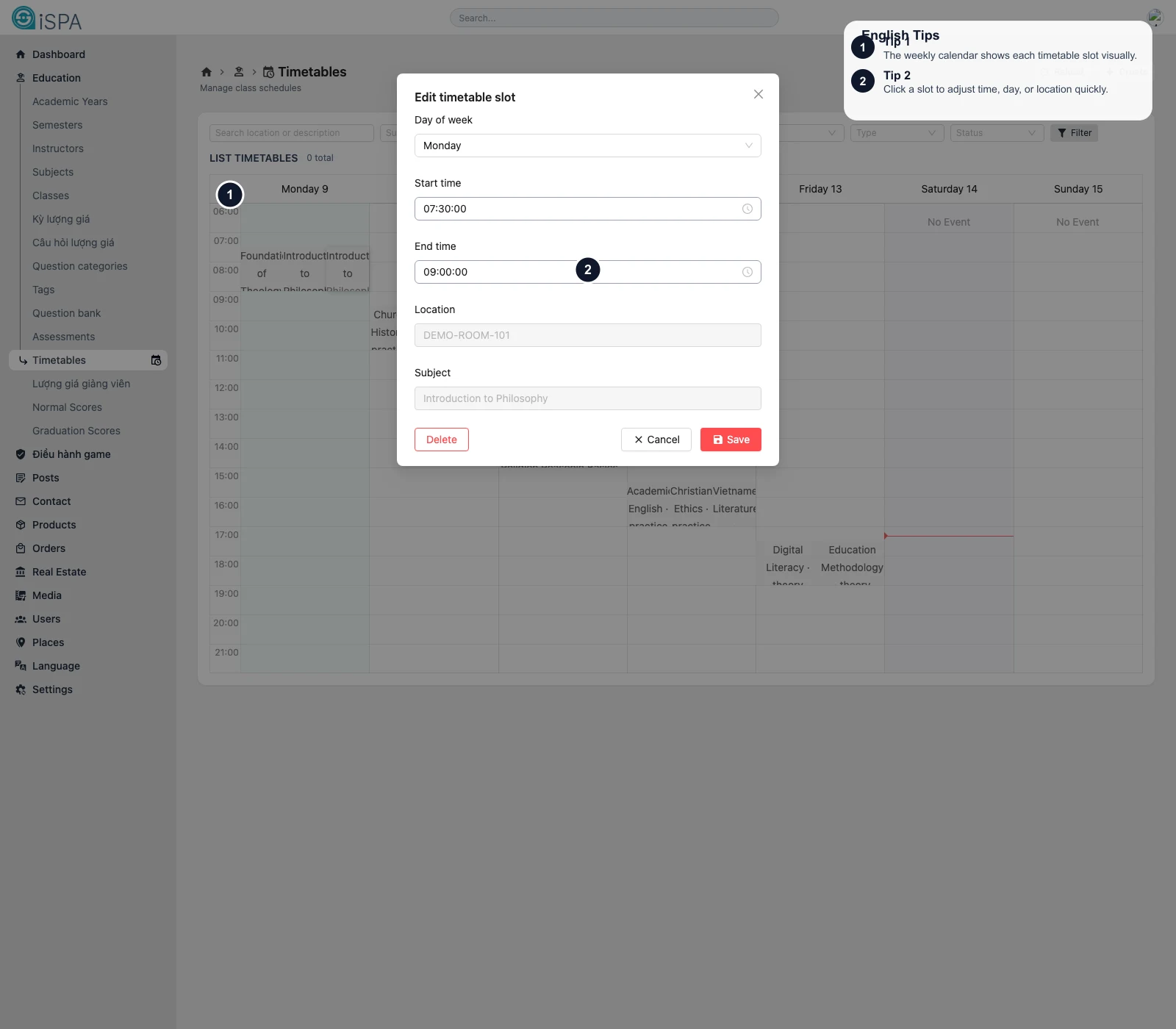
Illustration captured from the local environment on March 14, 2026. The English callouts highlight the weekly calendar and the quick-edit slot modal that opens when you click a session.
Use this page to review and adjust weekly teaching schedules in a visual calendar. Instead of reading only rows in a table, you can see sessions placed directly on the timetable.
What this screen helps you do
- filter the timetable by class, subject, instructor, or weekday
- view the schedule in a weekly calendar layout
- create a new timetable slot
- drag and drop a slot to another time
- resize a slot to change duration
- click a slot to open a quick-edit modal
What appears on the screen
- filter bar
ReloadCreate- the weekly calendar
- timetable events shown directly on the grid
- an edit modal when a slot is clicked
What the create or edit form includes
Typical fields are:
- class offering
- subject
- instructor
- day of week
- start time
- end time
- session type
- location
- status
- description
On create, the form can also repeat the slot weekly across multiple selected days.
What the quick-edit modal is for
When you click an existing slot, the modal allows you to adjust:
- day of week
- start time
- end time
- location
- subject overview
- delete if needed
This is usually the fastest way to correct one specific session.
Recommended workflow
- Filter to the class or instructor you need.
- Review the weekly layout.
- Click any slot that needs correction.
- Use the full create form when you need to add new recurring sessions.
Important reminders
- timetable records depend on Classes, subjects, and instructors
- if the class structure is wrong, the timetable will also be difficult to interpret
Repeat weekly onusually matters most during creation, so confirm the pattern before saving