

Create Post
Create Post
Create Post is the shared creation form for most content types inside the Posts module. From this same layout, you can create a regular post, audio, video, document, notification, admission record, or event.
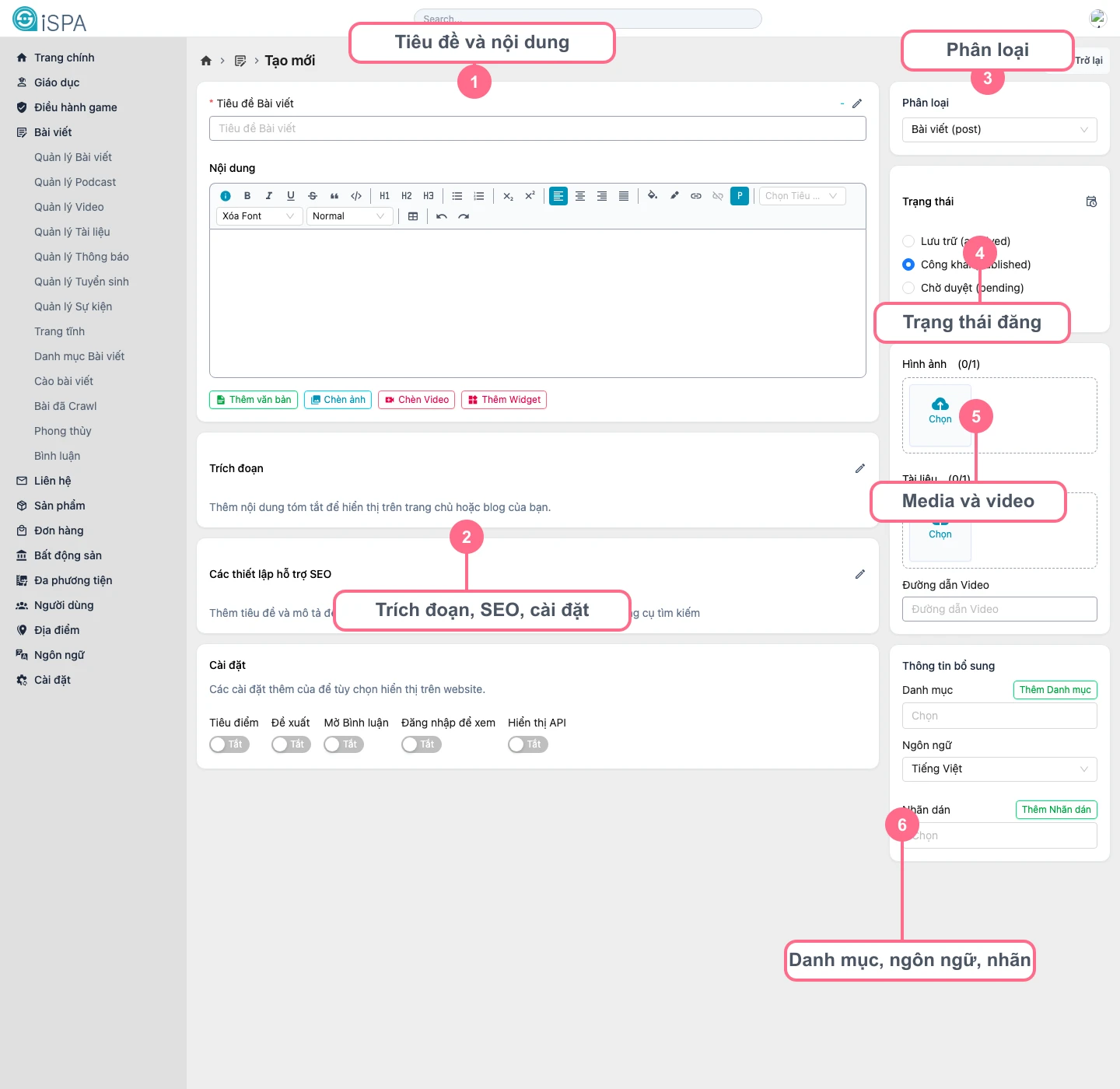
Illustration captured from the local environment on March 14, 2026. The numbered callouts on the screenshot help you locate each major form area quickly while you work.
Before you begin
- prepare the post title
- decide whether the record is
post,audio,video,document,notification,admission, orevents - prepare images, attachments, or a video URL if this content type needs media
- if the post should be published immediately, verify the category and language first
What each form area means
Title and content: where you enter the title, slug, and long-form contentExcerpt, SEO, settings: where you enter short description, SEO data, and display flagsClassification: the content type selectorPublishing status: draft, pending review, published, or scheduledMedia and video: upload images, attachments, or video URLsCategories, language, tags: taxonomy fields that decide where the post will appear
Easiest order to fill the form
- Choose the
Classificationfirst. - Enter the
Post title. - Check or adjust the
slugif the generated version is not what you want. - Write the main
Content. - Fill in the
Excerptso lists and SEO have a short description. - Choose the
Publishing status. - Upload
ImagesorDocumentsif needed. - Choose
Category,Language, andTags. - Only then review the
SEOarea and extra flags.
How the content types differ
post: regular long-form content with image and article bodyaudio: requires anattachmentthat contains the audio filevideo: usesVideo URLinstead of an attachment as the main playback sourcedocument: requires an attachment and often includes metadata such as author or release datenotification: usually shorter and depends heavily on a clear title and publication timingadmission: should usually follow category rules by year or admission roundevents: requires careful checking ofpublished_atso timing is not exposed incorrectly
Common mistakes users make
- choosing the wrong
Classificationand entering too much content before noticing - forgetting to attach a file for
audioordocument - entering
video_urlwithout checking whether the link still works - leaving the post as
publishedwhile content is still unfinished - forgetting the category so the post appears in the wrong frontend section
After you click save
- The system sends you back to the management screen that matches the selected type.
- You should reopen Post Detail to review the title, image, SEO, and status.
- If the post still needs work, open Update Post directly from the list.
Choosing the type first is the most important rule
The type decides which fields appear, which fields are required, and which management screen you return to after saving. Choosing correctly at the start reduces a lot of rework later.