

Assessments
Assessments
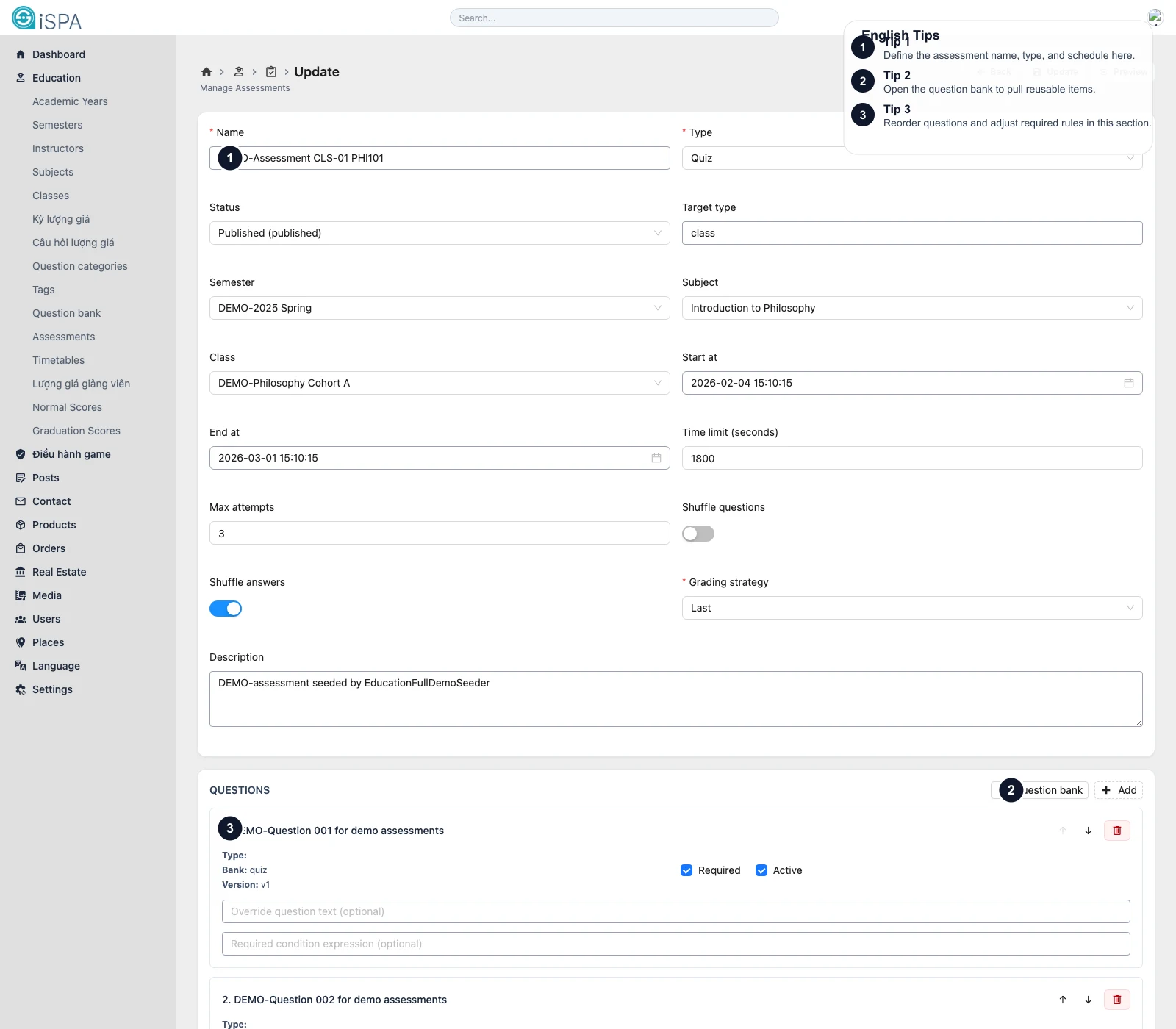
Illustration captured from the local environment on March 14, 2026. The English callouts highlight the assessment setup fields, the question bank shortcut, and the question-order area.
Use this page to create structured assessments such as quizzes or surveys. This is where you control the open window, attempt limits, and the exact question set.
What the list screen is for
From the list, you can:
- search by name
- filter by type and status
- filter by semester, subject, or class
- create
- edit
- delete
This is the right place when you manage many assessment records at once.
What the create or edit form contains
General setup
Typical fields include:
- assessment name
- type: quiz, survey, or mixed
- status
- target type
- semester
- subject
- class offering
- start and end time
- time limit
- max attempts
- shuffle questions
- shuffle answers
- grading strategy
- description
Question setup
In the lower section, you can:
- open the
Question Bank - pull approved questions into the assessment
- add blank questions when needed
- reorder questions
- mark a question as required
- enable or disable a question
- override displayed wording
Why the Question Bank button matters
It lets you reuse reviewed questions instead of rewriting them every time. This improves consistency and reduces duplication.
What the Attempts route is for
Each assessment also has an Attempts route where you can review:
- who opened or submitted the assessment
- the attempt status
- score percentage
- submitted time
- duration
If someone asks, “Who has already completed this assessment?”, the answer is not in the form screen. It is in Attempts.
Do not confuse this with Research Periods
- Research Periods are usually for instructor evaluation windows
Assessmentsare for timed or rule-based quizzes and surveys
Recommended workflow
- Decide whether the record is a quiz or survey.
- Link it to the correct semester, subject, and class.
- confirm start and end time.
- pull the correct questions from the bank.
- review order and required flags.
- save.
- open
Attemptslater when you need participant-level tracking.