

Manage Posts
Manage Posts
Manage Posts is the main working screen for editors. If you need to find a record, change status, open a post quickly for editing, or process several posts at once, this is where you will usually work.
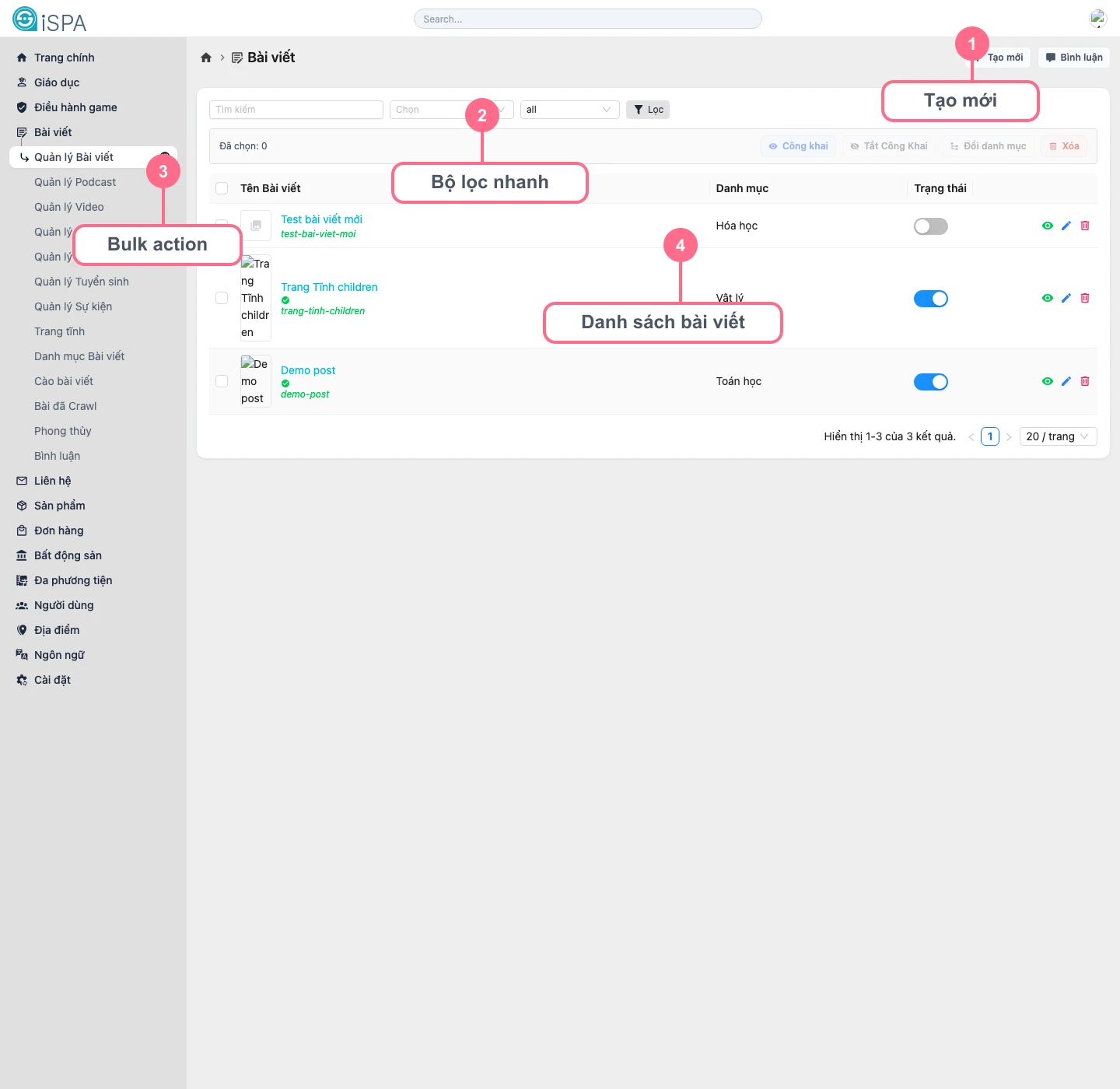
Illustration captured from the local environment on March 14, 2026. The list currently contains sample data so you can clearly see the filter area, bulk actions, and quick actions on each row.
What is on this screen?
Create new: goes directly to the post creation formComments: opens the post comment moderation screenQuick filters: search by keyword, status, category, or any enabled system conditionsBulk actions: publish, unpublish, change category, or delete several posts at oncePost list: shows the title, category, status, and quick actions for each post
How to filter the post list
- Type a keyword if you remember the title or part of it.
- Add a status or category filter if the list is too large.
- Click
Filterto reload the table. - If you want to start over, clear the filter conditions or return them to default.
How to read a single row
Post title: shows the title, thumbnail, andslug- green check icon: the post is currently public
- star icon: the post is marked as
featured - lock icon: the record is locked or restricted by a system rule
Status: can be toggled quickly betweenpublishedanddraft- action column: open detail, edit, restore, or delete
How to process multiple posts at once
- Tick the posts you want to act on.
- Check the
Selectedrow. - Choose the correct action:
Publish: use when the selected posts are ready to go live together.Unpublish: use when you need to hide multiple posts temporarily.Change category: especially useful when moving a whole group of posts into a new section.Delete: only use when you are fully certain, because this is the most sensitive bulk action.
When should you use this screen?
- when you need a quick view of which records are still
draft - when you want to move a group of posts to
published - when you need to open one record in Update Post
- when you want to inspect a record in Post Detail before QA or handoff
Every type-specific management screen works in a similar way
Manage Posts, Manage Audio, Manage Video, Manage Documents, Manage Notifications, Manage Admissions, and Manage Events all follow a similar operating pattern. The main difference is the content type being filtered and the data requirements in create or update forms.