

Education Dashboard
Education Dashboard
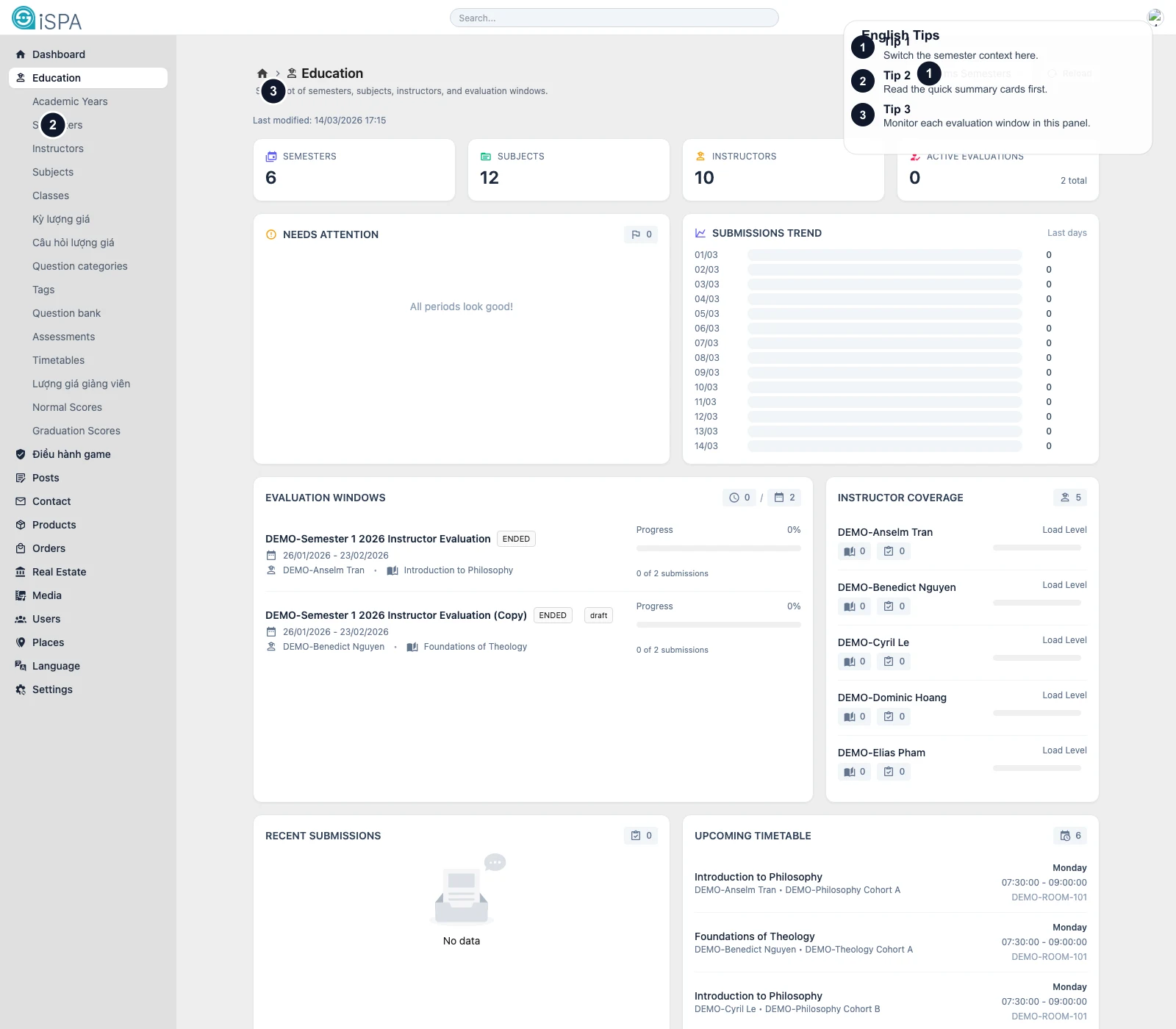
Illustration captured from the local environment on March 14, 2026. The English callouts highlight the semester switcher, the summary cards, and the evaluation window area so you can orient yourself quickly.
This overview page helps operators check the overall health of the Education area before drilling into individual tables.
What this screen is for
- review the current number of semesters, subjects, instructors, and active evaluations
- spot evaluation windows that need attention
- monitor submission activity over recent days
- see quick instructor coverage and upcoming timetable items
If you only open one Education screen in the morning, this is usually the right one.
Main areas on the screen
Semester switcher
The semester selector at the top changes the dashboard context. If the numbers look “wrong,” the first thing to verify is whether the selected semester is the one you expected.
Summary cards
The top cards answer quick operational questions such as:
- how many semesters exist
- how many subjects are available
- how many instructors are active in the current context
- how many evaluation windows are currently open
This is the fastest way to decide whether the foundation data looks complete.
Needs Attention
This panel highlights windows that may require intervention, for example:
- periods that are open but still have no submissions
- periods close to the deadline
- periods with a state that should be reviewed
Submissions Trend
This chart shows submission movement over recent days. It is helpful when you want to confirm whether an evaluation campaign is actually receiving responses.
Evaluation Windows
This is the most operationally important panel on the page. Each card usually shows:
- period name
- status
- date range
- instructor and subject
- submissions versus expected responses
You can think of it as the dashboard’s “live workload” section.
Instructor Coverage, Recent Submissions, Upcoming Timetable
These lower sections help answer day-to-day questions:
- which instructors currently have teaching load
- whether new submissions have arrived recently
- which class sessions are coming up next
Recommended reading flow
- Confirm the semester selection.
- Read the top summary cards.
- Check
Needs Attention. - Scan
Evaluation Windows. - Use
Submissions Trendwhen you need a stronger signal about participation.
When should you leave the dashboard?
- go to Research Periods when a window needs correction
- go to Research Results when you need the detailed result table
- go to Timetables when the question is about upcoming teaching slots
- go to Subjects or Classes when the issue is clearly missing foundation data