

Update Post
Update Post
Update Post uses almost the same layout as Create Post, but the record data is already loaded so you can edit what exists.
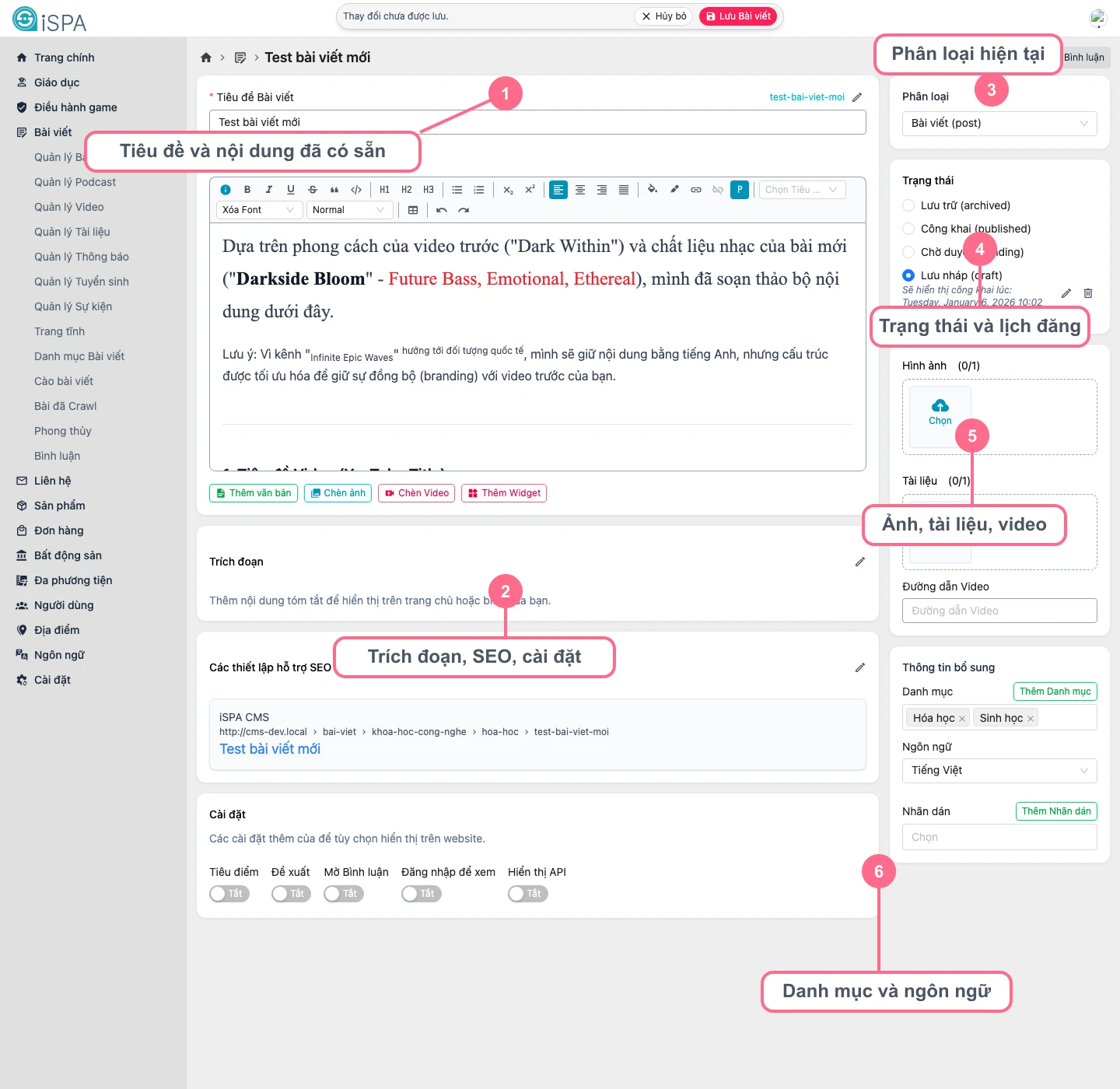
Illustration captured from the local environment on March 14, 2026 using a sample record that already contains content, category, media, and publication status, so you can compare it with the real editing flow.
When should you use this screen?
- when you need to change the title, slug, or body of an existing post
- when you need to replace an image, attachment, or video URL
- when you need to change status or scheduling
- when you need to add category, tags, SEO, or display settings
Safe editing flow
- Open the record from Manage Posts, Posts Dashboard, or the type-specific management screen.
- Edit information in this order: title, content, short description, media, category, SEO.
- Watch the unsaved-change warning bar near the top of the form.
- Only click save when you are sure all changes are correct.
- After saving, open Post Detail for a final self-check.
The fields users change most often
- adjusting
slugto match SEO rules - updating
contentanddescription - replacing
thumbnail - changing
statusfromdrafttopublished - setting or correcting
published_at - toggling flags such as
featured,recommended,allowComment, andshowApi
Important notes
- if you change the
type, review every field that is specific to the new type - for
audioanddocument, verify the attachment before saving - for
video, make surevideo_urlis still valid - if the post is already public, saved changes may affect the frontend immediately
The update form warns you about unsaved changes
If you edit the form and try to leave without saving, the warning bar at the top is your reminder to stop and review. This is especially useful when you are working on long posts or posts with a lot of media.