

Classes
Classes
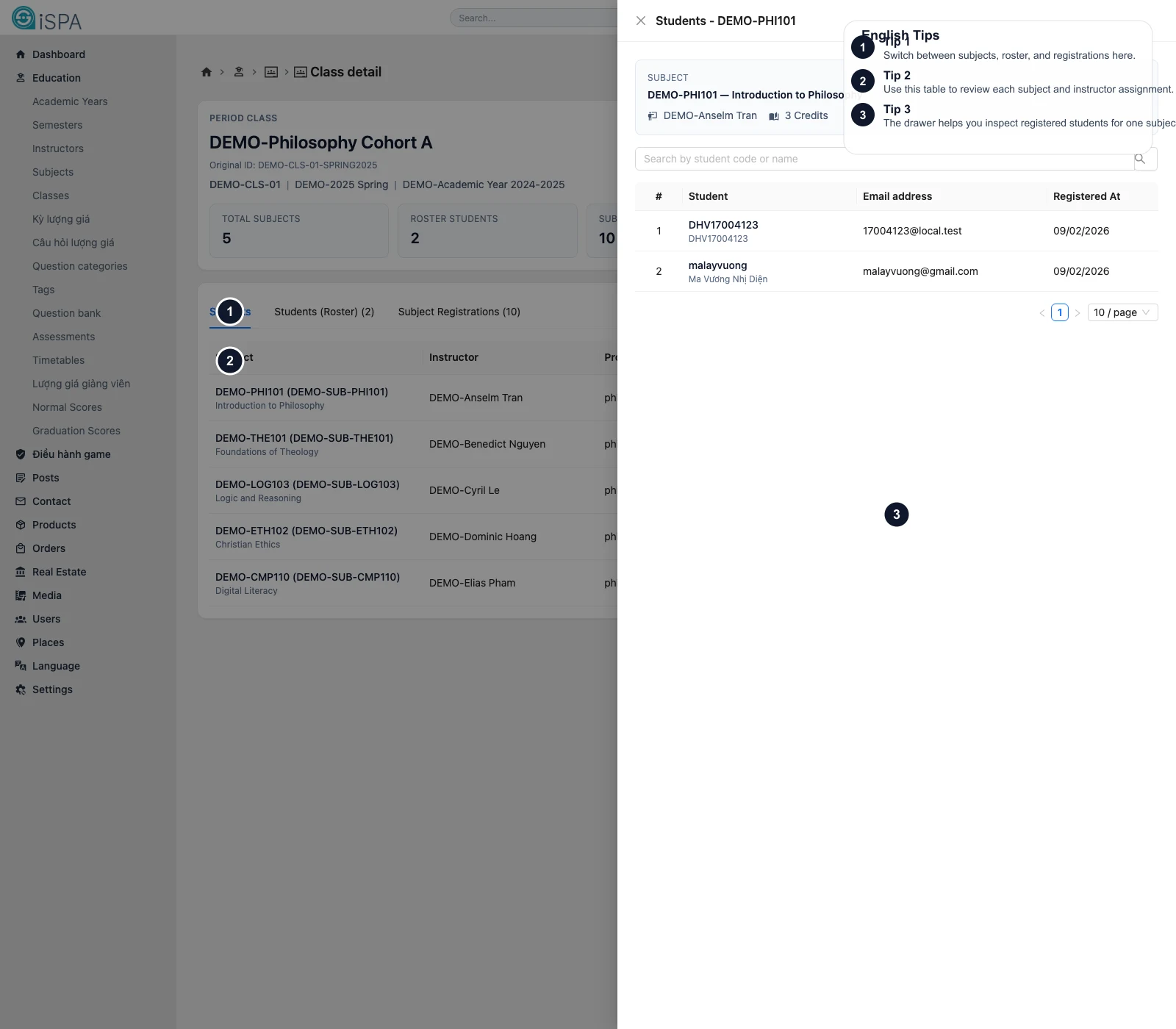
Illustration captured from the local environment on March 14, 2026. The English callouts highlight the tab area, the subject table, and the student drawer so you can understand that this screen is more than a simple list.
Use this page to build and manage class offerings. It connects the class, subject, and instructor, then lets you review roster and actual registrations.
Understand the two screen levels
1. Class list
The main list is used to:
- filter by name, class code, semester, or status
- create a class offering
- edit a class offering
- delete one or many records
- open the detail route by clicking the class name
2. Class detail
The detail screen is where users most often get confused because it separates three perspectives:
Subjects: the subjects assigned to the class offeringRoster: students who belong to the classRegistrations: students who actually registered for specific subjects
Why are Roster and Registrations different?
In simple terms:
Rostermeans “who belongs to this class”Registrationsmeans “who registered for a subject inside this class”
A student can belong to the class but still not be registered for every subject. That is why the counts are not always identical.
What the create or edit form contains
The top-level fields normally include:
- class code
- original ID
- class name
- semester
- status
Then comes the more complex part: one or more subject - instructor rows. Each row can include:
- subject
- instructor
- program
- credits
- semester number
- optional flag
- score or weighting
- sort order
So a single class offering can contain multiple subject assignments, not just one.
Recommended workflow
- Create the class offering with a clear code and name.
- Link it to the correct semester.
- Add each subject and instructor row carefully.
- Check for duplicates before saving.
- Open the detail screen and verify
Subjects,Roster, andRegistrations.
When should you open the detail route?
Use the detail screen when you need to answer questions such as:
- which subjects are in this class
- who teaches each subject
- how many students belong to the class
- which students are registered for one specific subject
The subject-level registration drawer is especially helpful for quick investigation.