

Research Periods
Research Periods
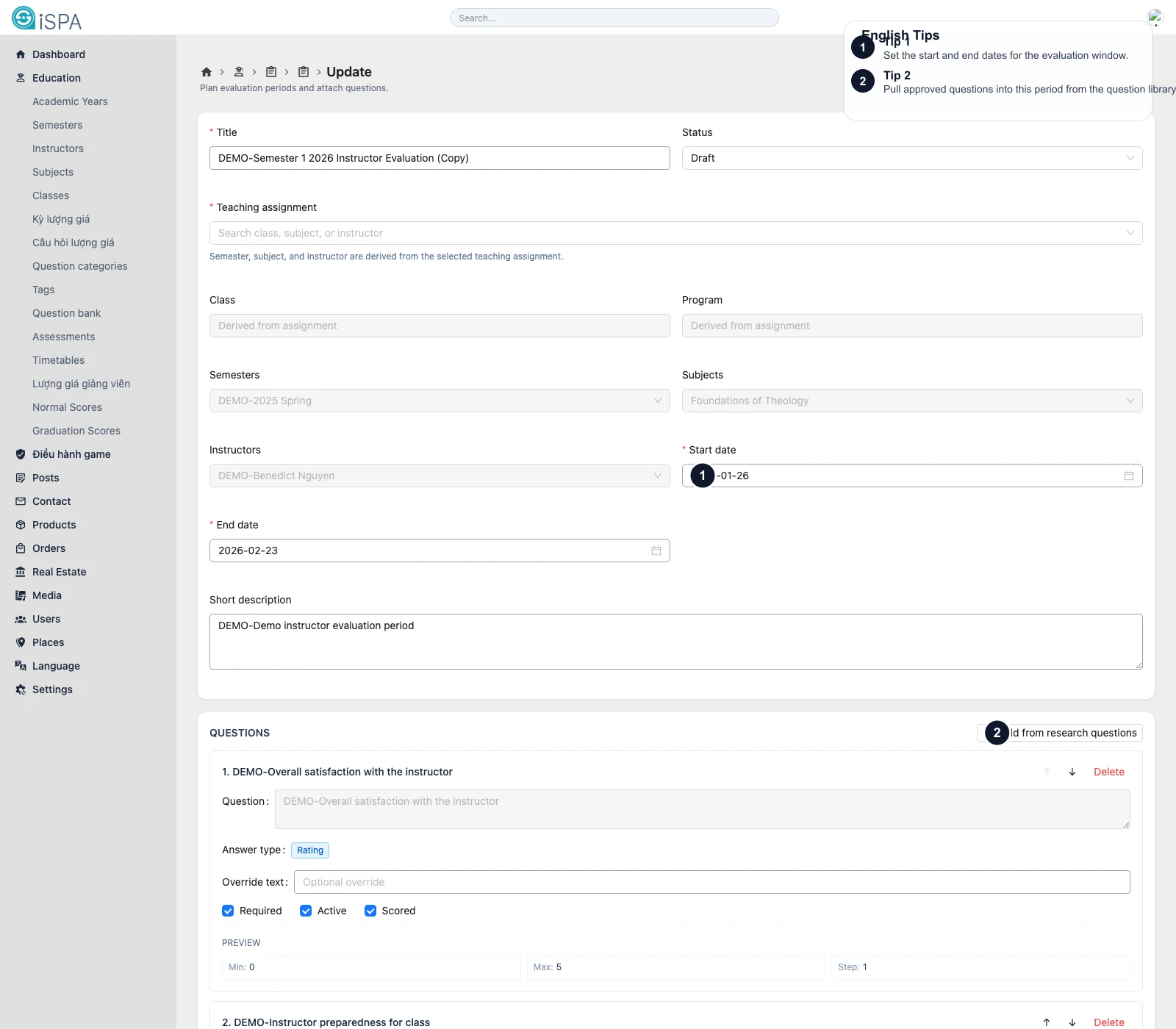
Illustration captured from the local environment on March 14, 2026. The English callouts highlight the teaching assignment selector, the date range, and the question area used for the period.
Use this page to open instructor-evaluation windows. In simple terms, this is where you define:
“Which class, subject, and instructor will be evaluated, during which time window, and with which questions?”
What you can do from the list
- filter by subject, semester, instructor, or status
- create a new period
- edit an existing period
- duplicate a period
- delete a period
The list is best for overview management across multiple windows.
The most important part of the form
The heart of the form is the Teaching assignment field.
Once you choose a teaching assignment, the screen derives:
- class
- program
- semester
- subject
- instructor
That reduces the risk of mismatching the subject or instructor manually.
What to do after selecting the assignment
- Name the research period.
- Choose the correct status.
- Set the start and end dates.
- Add an internal description if needed.
- Pull in the right evaluation questions.
- Reorder them and decide which ones are required or scored.
How the Questions area works
In the lower section, you can:
- add items from
Research questions - move questions up or down
- remove a question from the period
- override the displayed text for a specific period
- turn
required,active, orscoredon or off
That means one base question can be reused across periods while still being tailored slightly for each case.
When should you use Duplicate?
It is especially useful when:
- many periods share the same structure
- only the instructor or date range changes
- you want to keep the same question order
After duplication, always re-check the assignment, dates, and status.
Do not confuse this with Assessments
- Research Periods are typically for instructor evaluation windows
- Assessments are for quizzes or structured surveys with time limits and attempt rules